 GigChain Keys
 › Guides
How to play VST plugins live without a DAW
A DAW is built for recording: timelines, tracks, arm buttons. On stage you just want to press a key and hear your sound, then press one button and hear the next song's. A live VST host does exactly that, with less to go wrong.
Why not just use your DAW on stage?
- Changing sounds is slow: selecting tracks and arming them mid-song is fiddly with one hand.
- Every sound is always loaded and running, so the computer works harder and latency goes up.
- One wrong click (record, a moved region, a closed window) can stop the sound in the middle of a song.
A live host loads each song's sounds, switches between them with no gap, and shows a big, simple screen you can read from a stand.
Step by step
1. Install a live VST host
This guide uses GigChain Keys: free and open source, on Windows, Mac and Linux. Get it from the download page.
2. Choose low-latency audio
Latency is the delay between pressing a key and hearing it. Under about 10 ms feels instant.
- Windows: use your audio interface's ASIO driver if you have one. Without an interface, the normal Windows output works for practice.
- Mac: Core Audio works well out of the box.
- Linux: JACK or PipeWire.
- Buffer size: start at 256 samples; try 128 if your computer copes without crackles.
3. Scan your plugins
GigChain Keys finds VST3 and VST2 plugins in the usual folders, and you can add your own folders and rescan in Settings. Popular choices that work well live:
- Free: Spitfire LABS, Surge XT, Vital, Dexed, Decent Sampler (and Pianobook instruments), Arturia's free Analog Lab Intro.
- Paid: Kontakt, Arturia V Collection and Analog Lab, Keyscape, Omnisphere, Pianoteq.
No plugins at all? GigChain Keys comes with its own grand and electric pianos, a supersaw synth, pads and a SoundFont player.
4. Make a song and add its sounds
Add a song, then add sounds to it. Put two on together to layer them (piano plus pad), or give each a key range to split the keyboard (bass on the left, piano on the right). Each song keeps its own sounds, volumes and effects.
5. Play in Perform mode
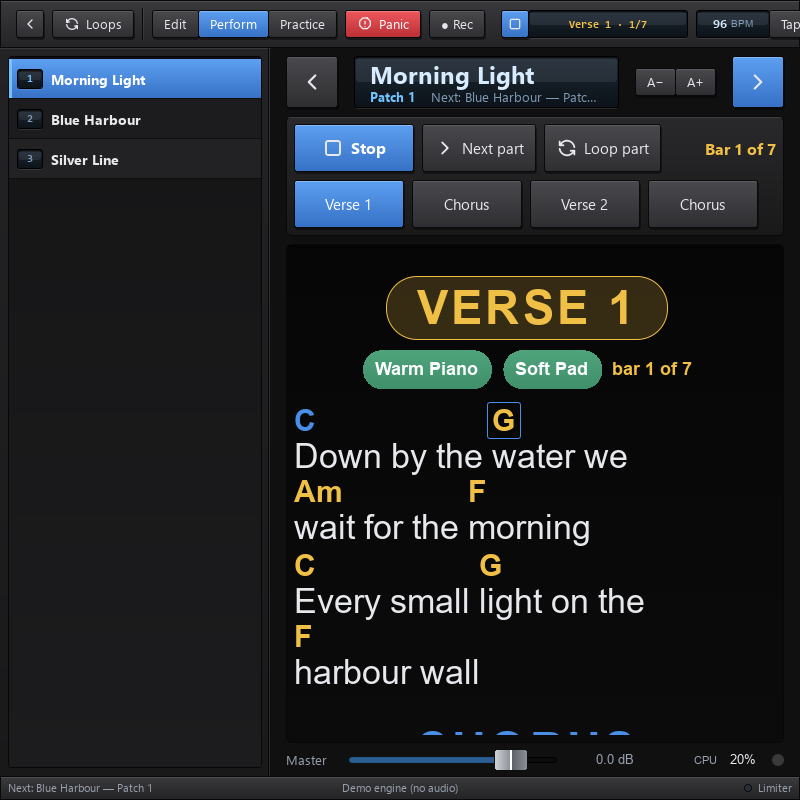
Perform mode shows the song, its sounds and its chord chart large enough to read on stage. Move to the next sound or song with a pad, footswitch, key, or a tap on the screen. The sound you're holding keeps ringing while the next one comes in.
Your plugins on stage, free. Windows, Mac and Linux.
Download GigChain KeysTips for the gig
- Turn off Wi-Fi and updates during the show, and plug the laptop in.
- Use the Windows "High performance" power plan so the CPU doesn't slow down mid-song.
- Heavy sample libraries (big Kontakt pianos) load faster from an SSD.
- Rehearse the changes: run the setlist in Perform mode once before the gig.